How to Edit Images, The Simple Way
Learn how to edit images with Pencil’s Agents and Nano Banana. A simple step-by-step method for consistent, high-quality AI edits at scale.
.png)

By Diogo Sampaio
Google's Gemini Flash 2.5 image generation - better known as nanobanana - has given marketers more firepower than ever when it comes to image consistency.
But getting those generations production-ready isn't always easy. Here our Creative Director Diogo Sampiao runs down some top tips on how to get the most out of nanobanana inside Pencil.
When working with AI-generated images, one of the biggest challenges is character or product consistency. You might have noticed that when you use “Generate Image” repeatedly, the results can drift, details get lost, characters don’t stay the same, and the outputs feel inconsistent.
Here’s a step-by-step approach that works every time to keep your images sharp, consistent, and usable.
Step 1: Don’t Rely on “Generate Image”
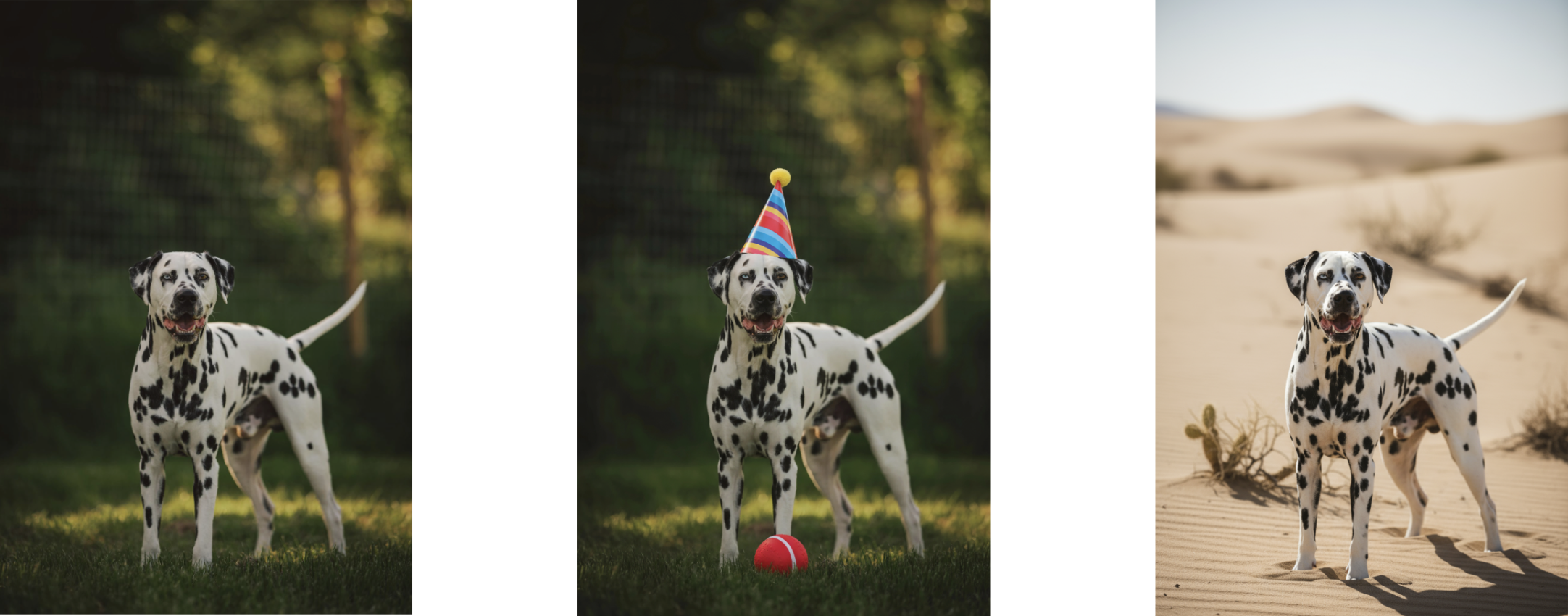
It doesn’t matter how carefully you word your prompt or how specific you get about details — Generate Image just isn’t designed for consistency. For example, when asked to keep the Dalmatian dog from above, it simply didn’t work:
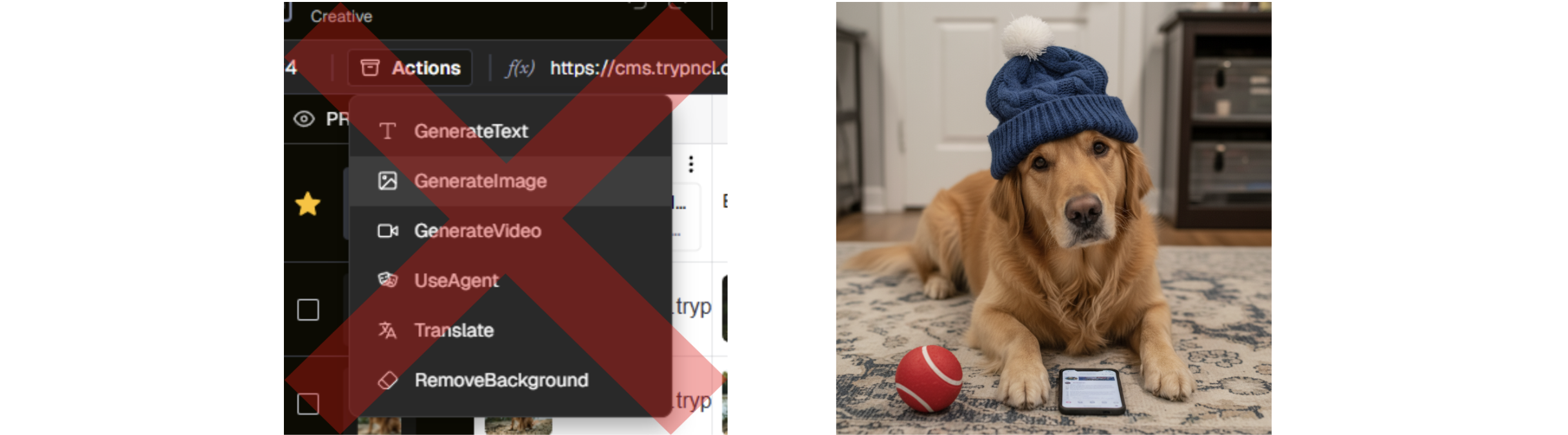
Step 2: Use a Strong Prompt + an Agent
Instead, the solution is to use a good, solid prompt + an Agent.
Here’s the formula we recommend (and yes, it’s backed up by Google’s own best practices):
Using the provided image of [subject], please [add/remove/modify] [element] to/from the scene. Ensure the change keeps all the details from the original image and integrates naturally with the existing style, lighting, and perspective.
This keeps the AI grounded in the original image while guiding it on how to make changes seamlessly.
Step 3: See It in Action
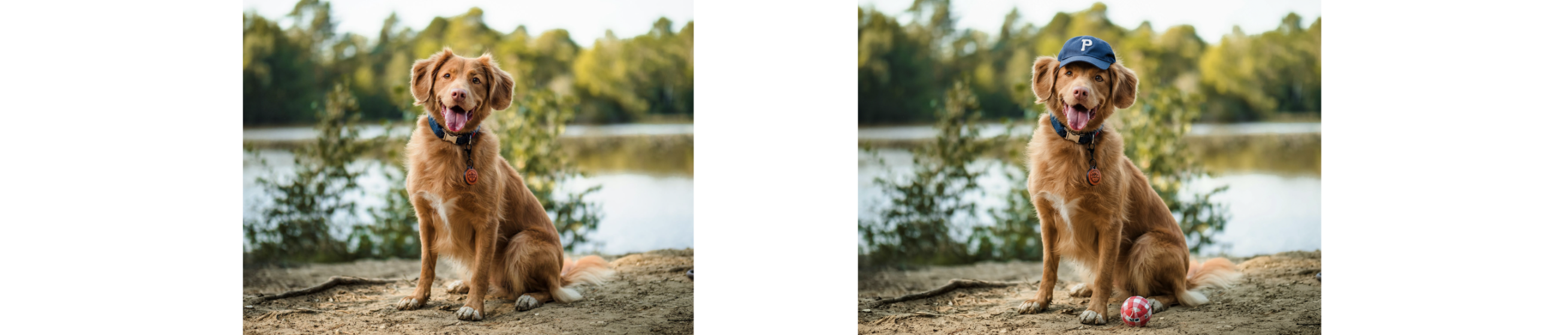
Here’s an example of how this works:
Prompt
Using the provided image of the dog, please add a hat on its head and a ball on the ground. Ensure the change keeps all the details from the original image and integrates naturally with the existing style, lighting, and perspective.
You can apply the exact same approach to background changes too:
Prompt
Using the provided image of the dog, please retain all the original details but place it on a desert background.

Step 4: Extend to People and Products
This approach works just as well for people and branded assets. For example:
Prompt
Using the provided image of the two men, please modify their clothing so that both are wearing camel-colored suits. Ensure the change keeps all details from the original image and integrates naturally with the existing style, lighting, and perspective.

Step 5: Scale with Feeds
One of the big advantages of Pencil is the ability to scale this process. Using Feeds, our team was able to generate 54 unique images in 1.5 hours for a high street clothing retailer — with only a few additional hours of regen for tricky images.
This shows how fast and reliable the method is when working at scale.
Step 6: Always Use References
Another pro tip: whenever possible, use references. Instead of asking the model to “invent” a new detail from memory, give it something to anchor to.
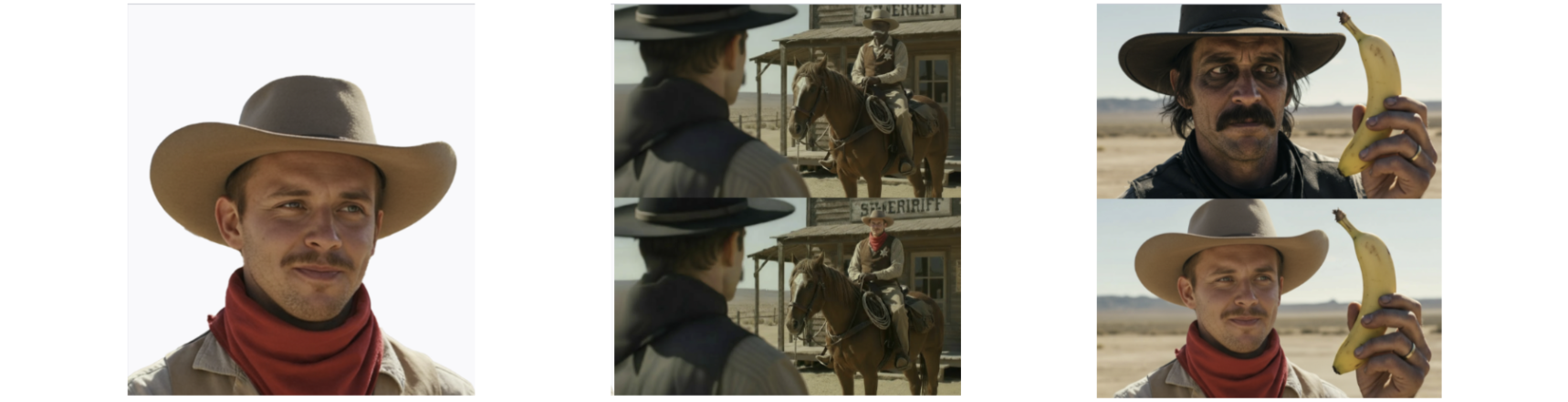
For example, if you want to change a cowboy character:
Provide a photo of the character you want. Ask the model to integrate it into the existing image. This works far better than vague prompting and ensures consistency across generations.
Wrapping Up
By avoiding “Generate Image” and instead combining a strong prompt + an Agent + references, you can achieve consistent, high-quality edits — whether it’s for pets, people, or products.
Nanobanana is able to stand out because it delivers both quality and reliability. Instead of wasting time on inconsistent generations, you can use it with Pencil’s Agents to create edits that stay true to the original, adapt naturally to new contexts, and scale quickly when you need large volumes of content. For marketers, that means sharper campaigns, faster workflows, and creative assets you can trust to perform.
Want to try this yourself? Explore how Pencil’s Agents can help you edit and scale image generation with consistency.
.png)
.png)
.png)
