Feature

Say 'Hello' to Pencil’s New AI Voiceover Feature
Say goodbye to clunky recording sessions and robotic voiceovers.

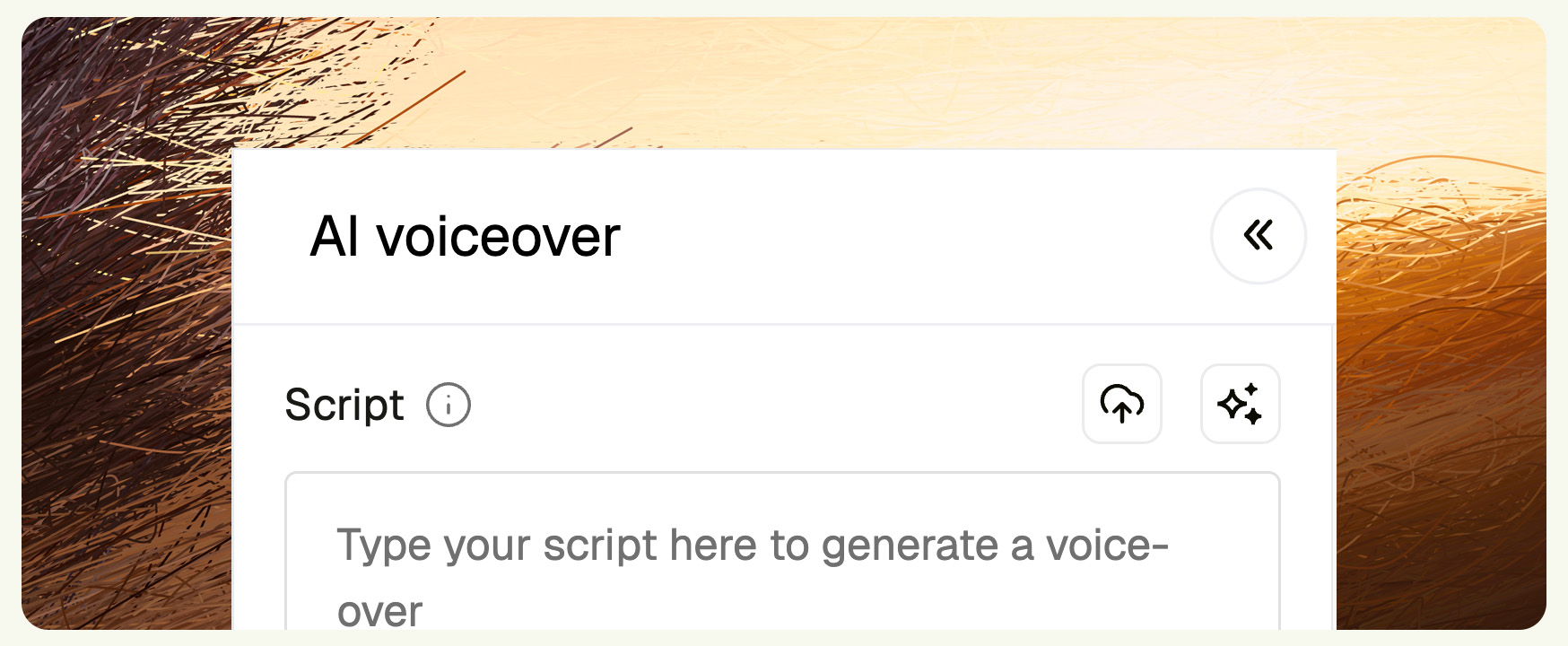
Pencil’s new AI Voiceover feature brings studio-quality narration into the editor—powered by Google Gemini 2.5 TTS and Chirp 3 HD voices. Now, you can script, style, and drop fully customized voiceovers straight into your timeline, without leaving your creative flow.

Why We Built It

From TikTok ads to product explainers and tutorials, more creators are using voice to bring personality and clarity to their content. But voiceover tools have traditionally been… a pain. You had to:

  • Write the script in one tool
  • Record or synthesize audio elsewhere
  • Import, trim, align, and hope it fits
  • Start over if it doesn’t

Not anymore.

What You Can Do With It

The new AI Voiceover tool lets you write or generate a script directly in the editor, upload a .txt or .docx file, or simply paste it in. If you're using Google Gemini 2.5 TTS, you can guide the tone of the voice with natural prompts—just type how you want it to sound, like “dramatic, like a movie trailer” or “soft and persuasive like a skincare ad.”

For creators working globally, the feature supports over 40 languages and native accents, making localization easier than ever. You can control the voiceover’s speed, add rhythmic pauses (with Chirp 3 HD), and fine-tune the volume to sit perfectly over your music. Once generated, the voiceover is automatically added to your timeline—no dragging, no imports, just instant results.

You also get the power of two top-tier voice models. Gemini 2.5 is ideal for stylized, emotional, or dynamic reads, thanks to its natural prompt-based styling. Chirp 3 HD is perfect for realism and precision, offering a high-fidelity, natural sound with manual pause control and fine adjustments.

Top Use Cases

This feature opens up a wide range of creative possibilities. For fast-paced, scroll-stopping social ads, you can generate quick and stylized voiceovers that deliver your message with flair. If you're producing product explainers or onboarding content, AI Voiceover provides clear, consistent narration across multiple languages, ensuring your messaging remains sharp and understandable no matter where your audience is.

When it comes to storytelling, especially in short-form video, you can create dialogue scenes using multiple voices, each with their own tone and character. This adds richness and personality without needing a studio setup. Tutorials and walkthroughs also benefit greatly; you can set a calm, confident tone and match the voiceover’s pace precisely to your visuals. And for localization at scale, the ability to switch languages and accents with a few clicks makes global content production easier than ever.

Pro Tips

To get the most out of the AI Voiceover feature, consider these best practices. When using Gemini, remember that the styling instructions field is your creative lever: write prompts as if you were directing a human voice actor. Phrases like “calm and meditative, like a sleep story” or “hype and energetic, like a YouTube unboxing” will help the model match your tone.

If you’re using Chirp 3, make use of the manual controls. You can add [pause], [pause short], or [pause long] in your script to control timing and rhythm, making your delivery feel more natural and polished. The speed selector allows you to slow things down for clarity or speed them up for urgency. Meanwhile, the volume gain slider lets you balance your VO with background music or sound effects.

It’s also worth noting that while Gemini doesn’t offer speed or volume sliders, you can influence those elements through prompt phrasing—for example, saying “speak slowly with high energy” will generally affect both tone and pace. Just be aware that only one voice or language can be used per voiceover segment, but you can easily layer multiple tracks in your timeline to build out more complex scenes or transitions.

How to Get Started

  1. Open a video creative in the editor
  2. Click the Voiceover tab on the left
  3. Enter your script (or generate it)
  4. Choose your model (Gemini or Chirp)
  5. Set voice, language, styling, speed, volume
  6. Click Generate—and it’s in your timeline

You can also generate multiple voiceovers for the same script and toggle them on or off in the timeline to compare versions and choose the one that fits best.

Final Thoughts

Whether you’re building TikTok ads at scale, refining a product walkthrough, or narrating your next big campaign, the new AI Voiceover feature gives you the creative power to add voice with speed, style, and scale—all without leaving your creative canvas.

👉 Ready to bring your stories to life? Jump into the editor and try it out today.

Say goodbye to clunky recording sessions and robotic voiceovers.

Pencil’s new AI Voiceover feature brings studio-quality narration into the editor—powered by Google Gemini 2.5 TTS and Chirp 3 HD voices. Now, you can script, style, and drop fully customized voiceovers straight into your timeline, without leaving your creative flow.

Why We Built It

From TikTok ads to product explainers and tutorials, more creators are using voice to bring personality and clarity to their content. But voiceover tools have traditionally been… a pain. You had to:

  • Write the script in one tool
  • Record or synthesize audio elsewhere
  • Import, trim, align, and hope it fits
  • Start over if it doesn’t

Not anymore.

What You Can Do With It

The new AI Voiceover tool lets you write or generate a script directly in the editor, upload a .txt or .docx file, or simply paste it in. If you're using Google Gemini 2.5 TTS, you can guide the tone of the voice with natural prompts—just type how you want it to sound, like “dramatic, like a movie trailer” or “soft and persuasive like a skincare ad.”

For creators working globally, the feature supports over 40 languages and native accents, making localization easier than ever. You can control the voiceover’s speed, add rhythmic pauses (with Chirp 3 HD), and fine-tune the volume to sit perfectly over your music. Once generated, the voiceover is automatically added to your timeline—no dragging, no imports, just instant results.

You also get the power of two top-tier voice models. Gemini 2.5 is ideal for stylized, emotional, or dynamic reads, thanks to its natural prompt-based styling. Chirp 3 HD is perfect for realism and precision, offering a high-fidelity, natural sound with manual pause control and fine adjustments.

Top Use Cases

This feature opens up a wide range of creative possibilities. For fast-paced, scroll-stopping social ads, you can generate quick and stylized voiceovers that deliver your message with flair. If you're producing product explainers or onboarding content, AI Voiceover provides clear, consistent narration across multiple languages, ensuring your messaging remains sharp and understandable no matter where your audience is.

When it comes to storytelling, especially in short-form video, you can create dialogue scenes using multiple voices, each with their own tone and character. This adds richness and personality without needing a studio setup. Tutorials and walkthroughs also benefit greatly; you can set a calm, confident tone and match the voiceover’s pace precisely to your visuals. And for localization at scale, the ability to switch languages and accents with a few clicks makes global content production easier than ever.

Pro Tips

To get the most out of the AI Voiceover feature, consider these best practices. When using Gemini, remember that the styling instructions field is your creative lever: write prompts as if you were directing a human voice actor. Phrases like “calm and meditative, like a sleep story” or “hype and energetic, like a YouTube unboxing” will help the model match your tone.

If you’re using Chirp 3, make use of the manual controls. You can add [pause], [pause short], or [pause long] in your script to control timing and rhythm, making your delivery feel more natural and polished. The speed selector allows you to slow things down for clarity or speed them up for urgency. Meanwhile, the volume gain slider lets you balance your VO with background music or sound effects.

It’s also worth noting that while Gemini doesn’t offer speed or volume sliders, you can influence those elements through prompt phrasing—for example, saying “speak slowly with high energy” will generally affect both tone and pace. Just be aware that only one voice or language can be used per voiceover segment, but you can easily layer multiple tracks in your timeline to build out more complex scenes or transitions.

How to Get Started

  1. Open a video creative in the editor
  2. Click the Voiceover tab on the left
  3. Enter your script (or generate it)
  4. Choose your model (Gemini or Chirp)
  5. Set voice, language, styling, speed, volume
  6. Click Generate—and it’s in your timeline

You can also generate multiple voiceovers for the same script and toggle them on or off in the timeline to compare versions and choose the one that fits best.

Final Thoughts

Whether you’re building TikTok ads at scale, refining a product walkthrough, or narrating your next big campaign, the new AI Voiceover feature gives you the creative power to add voice with speed, style, and scale—all without leaving your creative canvas.

👉 Ready to bring your stories to life? Jump into the editor and try it out today.

Articles

GPT-5.6 Has Landed: Sol, Terra and LunaHeading
Article

GPT-5.6 Has Landed: Sol, Terra and Luna

OpenAI's new model family is live in Pencil. Which tier to pick for each job.

Ethical GenAI for Enterprise Brands
Article

Ethical GenAI for Enterprise Brands

A first-of-its-kind package helping brands adopt GenAI responsibly.

Pencil Partners with Adobe
Article

Pencil Partners with Adobe

Adobe Firefly now integrates directly into the Pencil platform.

Pencil Launches on Google Cloud
Article

Pencil Launches on Google Cloud

Enterprise teams can now access Pencil through Google Cloud Marketplace.