Figma integration

Native Figma import, no plugin required
Your best ideas start on the Figma canvas. Pencil picks them up from there. Paste a link to a Figma section and Pencil brings it in as a work or a reusable template, layers intact. From there you can adapt, localise and produce it at scale with Pencil’s agentic AI marketing tools.
There’s nothing to install and nothing to export first. Frames map to formats. Text stays editable. Shapes stay sharp.
What happened to the plugin?
Pencil stopped supporting the Figma plugin on 1 October 2026. We’ve also deprecated the .pencil import option. Everything you imported with the plugin stays in Pencil though, so you won’t lose any work. If you still have .pencil files saved, you can safely ignore them, and instead import the same creatives from their original Figma sections.
Set up once
- Switch it on. A workspace admin turns on Figma Import in Settings, under Beta features. One switch covers the whole workspace.
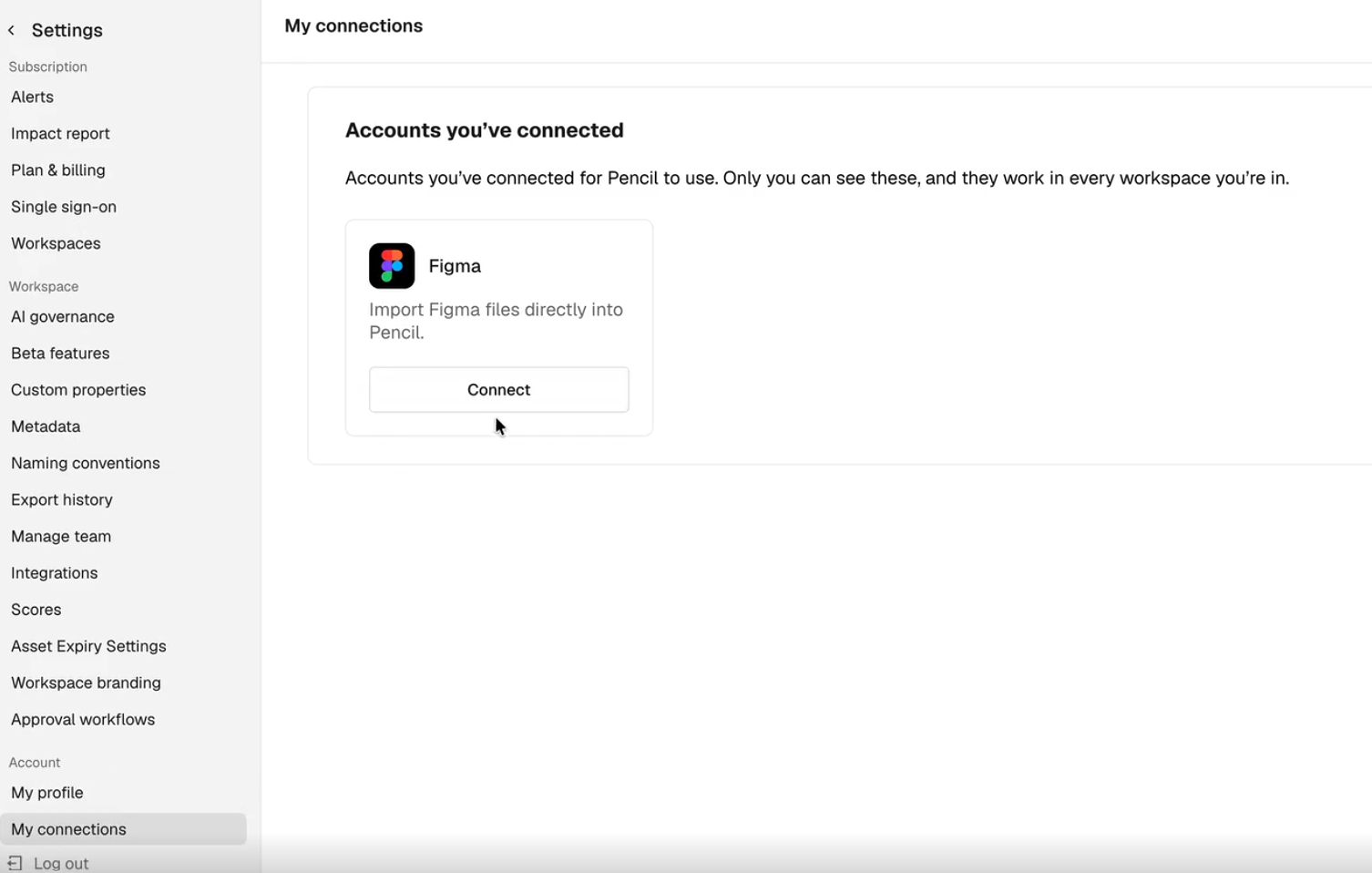
- Connect Figma. Go to Settings, open Integrations and click Connect on the Figma card. Any role can connect, and each person connects their own Figma account. If you start an import first, Pencil prompts you and takes you there.
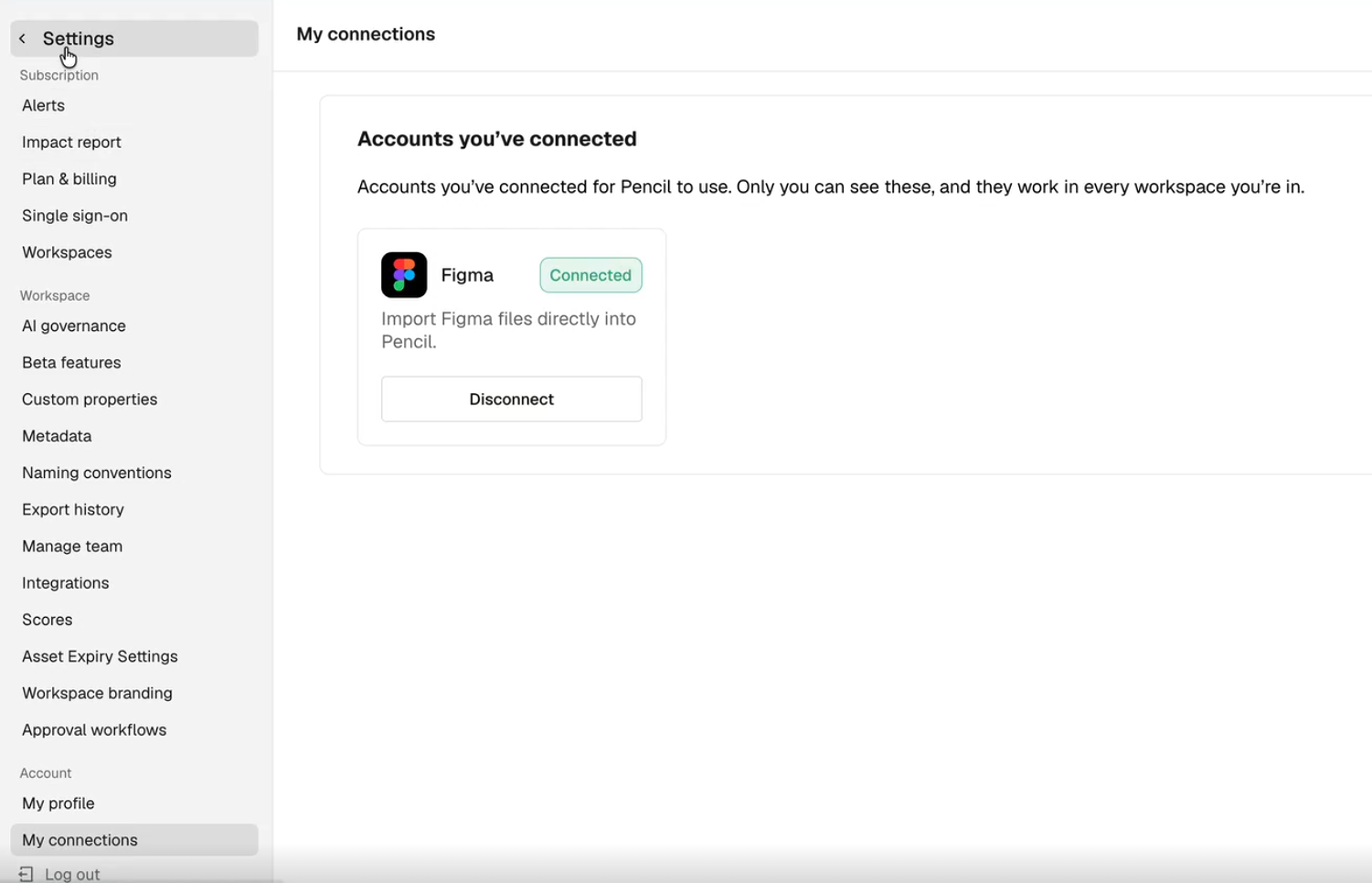
Pencil reads your design through Figma’s API using your own authorisation. Your personal data, like your Figma login details stay completely private. Nothing gets downloaded from Figma or uploaded to Pencil along the way.
Please note: connect with your organisation’s paid Figma account where you can. Figma rate-limits free accounts, which can interrupt an import.
Import a design in four steps
- Copy the link. In Figma, right-click the section you want and choose Copy or Paste as, then Copy link to section. Make sure the frames you need are inside that section. Pencil imports one section at a time, so link to a section rather than a single frame or the whole file.
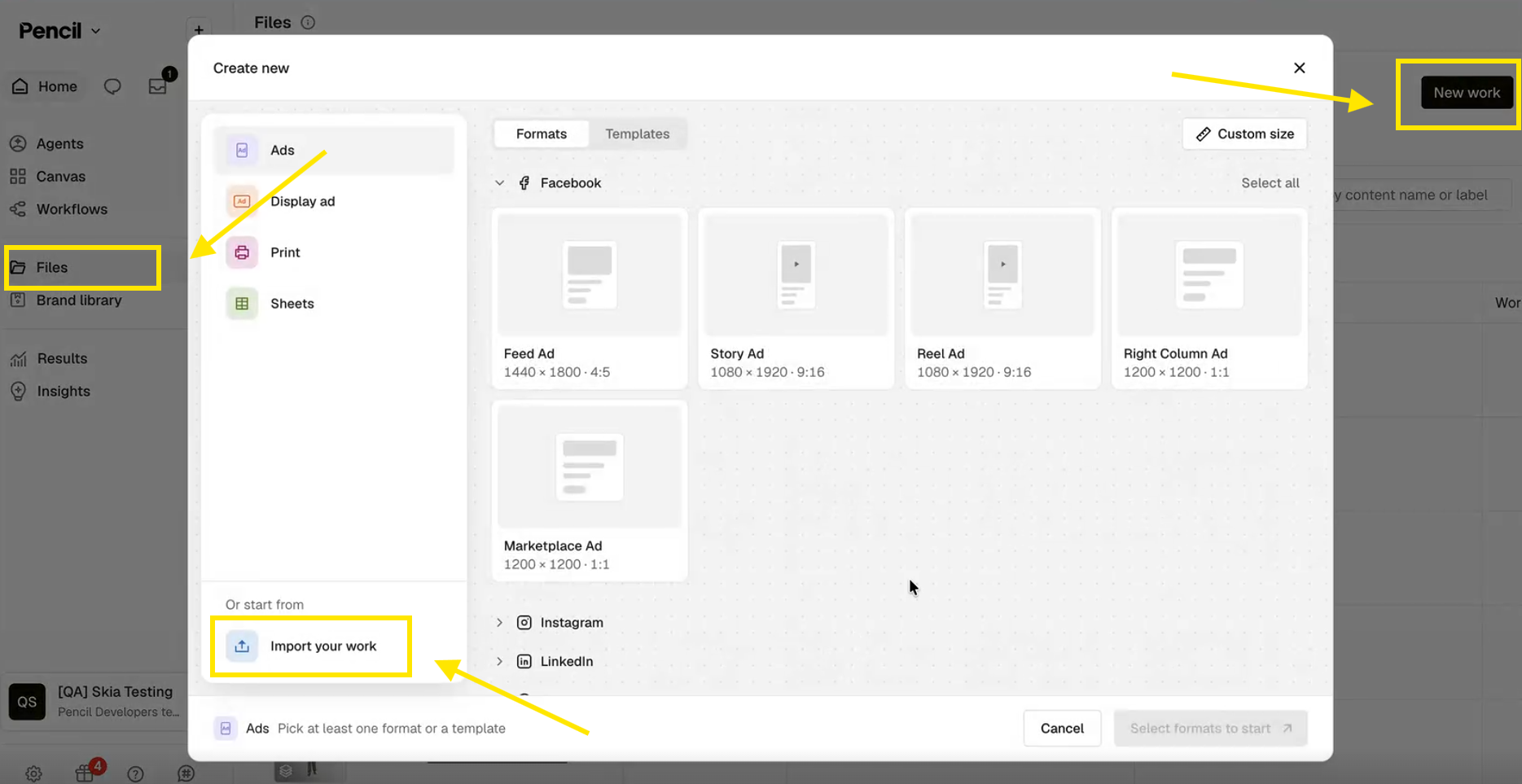
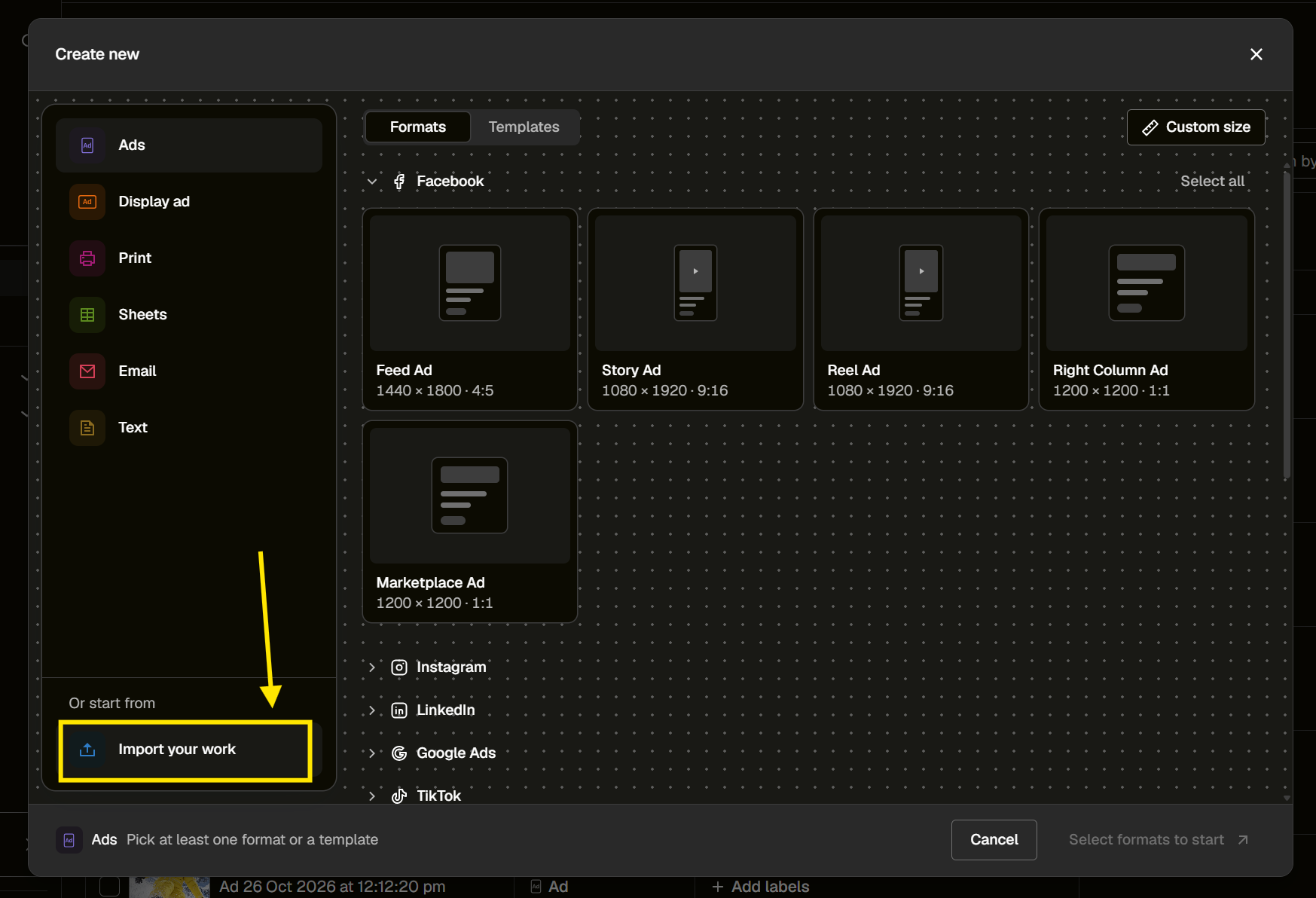
- Start the import. In Pencil’s Files Library, open the Works or Templates tab. Click New work, choose Import your work, then choose Figma.
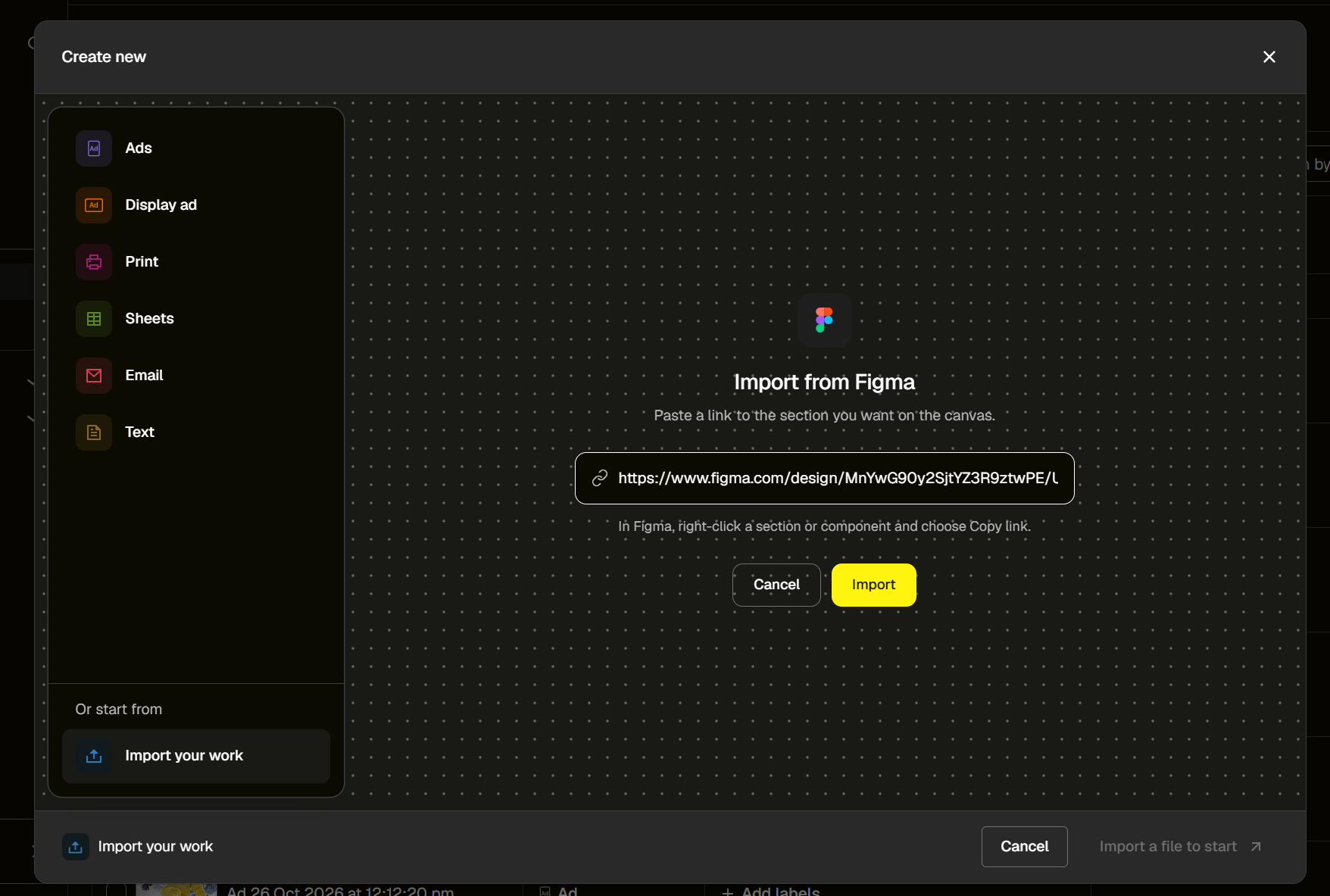
- Paste and import. Paste the link into the Import from Figma dialog and click Import.
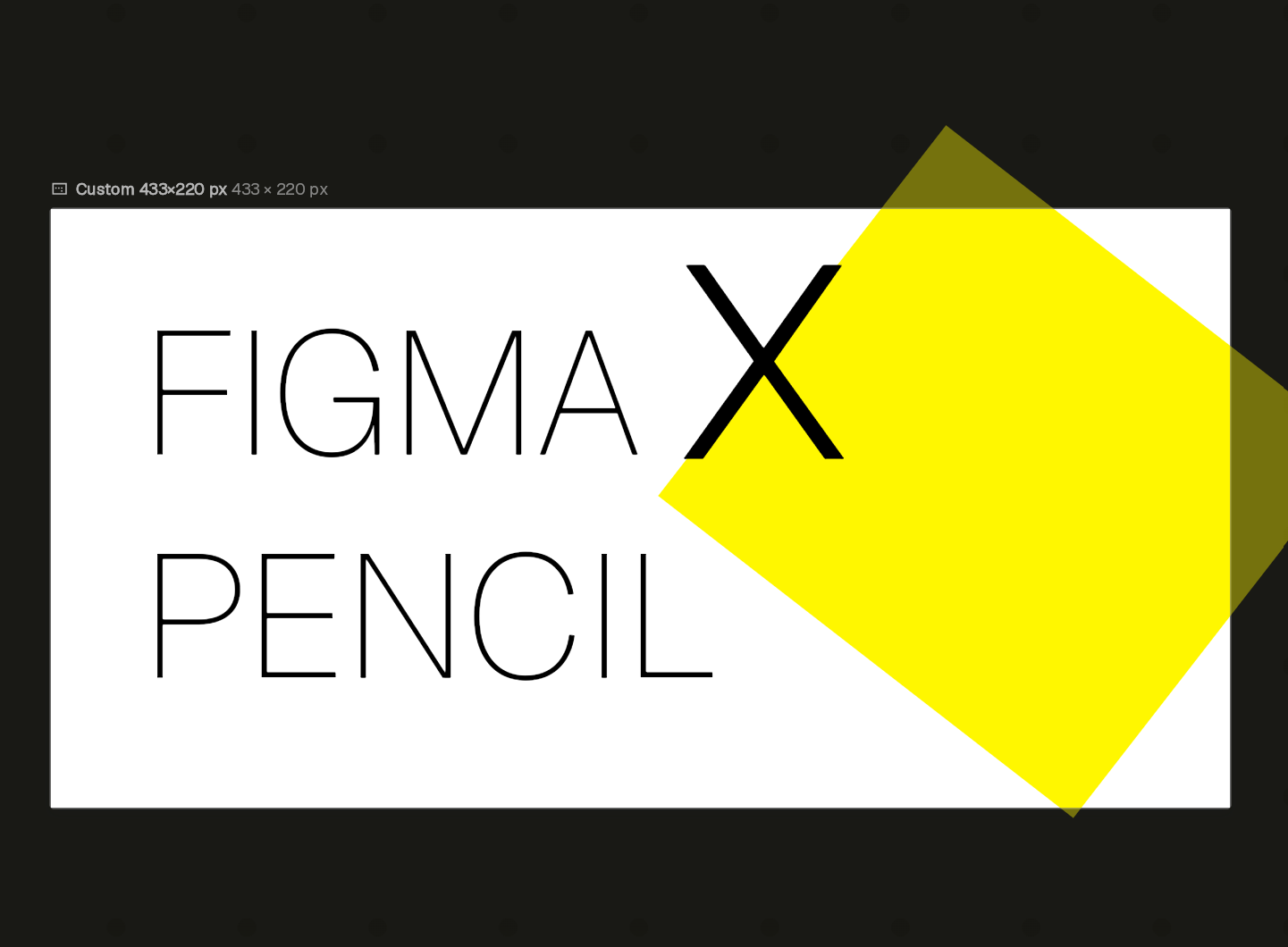
- Review and confirm. Before anything lands, Pencil shows you what it found and flags anything worth a look. Confirm to bring the design in, or cancel to leave everything as it was.
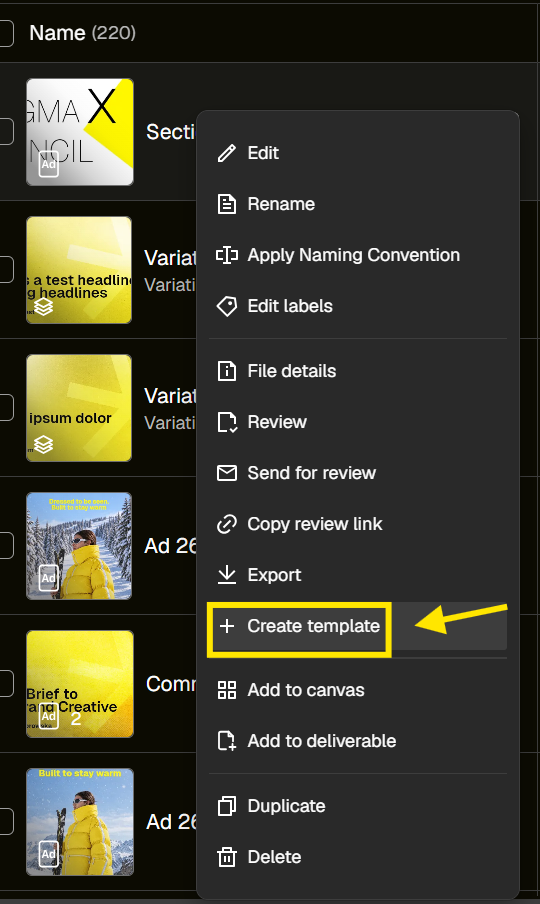
If you started with a work, and later decide you’d like to make it into a template for reuse, browse to your imported Figma work in the Files Library, and choose Create Template from its three-dots menu.
How your design lands in Pencil
- Sections become a single work or template in your library.
- Frames become formats. A section holding a 1:1, a 9:16 and a 16:9 frame gives you a three-format creative.
- Layers stay as layers, including those nested inside groups and frames. Text stays text and shapes stay shapes.
- Masks carry across as Figma defines them.
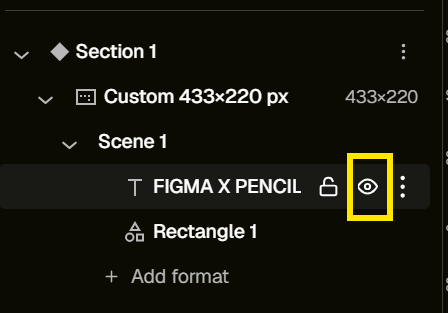
- Hidden layers arrive hidden, ready to toggle on in the editor.
Preparing your Figma file
A few things are worth a quick check before you import:
- Sections. The design you want needs to sit inside a section.
- Layer names. Give a layer the same name in every frame, and the Edit-all toggle lets you edit it across all formats at once.
- Group effects. An effect, blend mode, rotation or mask on an entire group will flatten that group into a single image. Instead, please move the affected elements onto individual layers to keep text editable.
- Image-only groups. Pencil merges these into one image. That suits a logo lockup. For image elements that you need to edit and move separately, you’ll need to set them as individual (ungrouped) images.
- Clipped auto layout. If an auto-layout frame has Clip content on and something overflows its edge, Pencil flattens that frame. Check this first if part of your design arrives flat.
- Frame your content correctly. Make sure everything you need in a section is in a frame. Since frames in Figma are equivalent to formats in Pencil, anything that sits outside of the section’s frames will be cropped out of the format upon import.
Bring your fonts
Pencil matches each text layer to a font in your Brand Library by name, so upload your fonts before you import. Match the name shown in Figma as closely as you can. For static fonts, weights and widths each count as their own file, so Poppins-Bold will not cover Poppins-SemiBold. Variable fonts, however, are also supported. To use them, upload the file, then set the axes in the Editor after import.
If the font used in Figma is not available in your Pencil workspace, you’ll be prompted to pick an alternative from a drop-down list when opening your imported work in Pencil’s Editor.
Import only
The integration runs one way, from Figma into Pencil.
For more info, you can also check out our help centre guide.